

QR code & NFC
Creating a product page reachable by QR code: a method so the scan is actually useful
For a QR code to lead to a useful product page, you need three things: a page designed for someone holding the item in their hand, an address that will not change, and a code printed large enough to be read at the real scanning distance. The rest is layout detail.
Start with the question of the customer holding the item
A person who scans a product's code almost always has a specific question: how to use it, what it contains, how long it keeps, how to order it again, what to do if something goes wrong. They are standing, often in a hurry, on a phone.
The page should therefore answer that question first, not tell the story of your company. An order that works:
- The exact name of the product and a clear photo of what the customer is holding.
- The usage information: instructions, care, composition or allergens if your business requires them.
- A single suggested action: order, ask a question, download the leaflet.
- Your contact details, last.
Editorial advice: write the page, then ask someone who does not know the product to read it on their phone, standing up. What they look for without finding it should be brought to the surface.
One address per product, and one that lasts
A QR code is a drawn web address. Printing it on packaging or a label means committing to that address responding for as long as the product is in circulation.
The GS1 Canada fact sheet on the GS1 Digital Link standard describes the risk well: if the scan leads to a missing page, a broken link or an incomplete page, the consumer simply moves on [1]. That text is about the mass retail industry, but the observation holds for a craftsperson sticking a label on a honey jar.
Three practical rules:
- A stable address per product, which does not depend on a file you will rename later.
- A QR code whose destination can be changed without reprinting it. With a "static" code, the address is written into the drawing itself: changing the page means reprinting. With a "dynamic" code, the drawing points to an intermediate address that you can redirect (see Dynamic QR code: the key to instant sharing).
- A page that stays online when the product leaves the catalogue: state "product discontinued" and offer the replacement rather than deleting the page.
If you sell in mass retail or in pharmacies, be aware that this field has its own standard: GS1 Digital Link places a product identifier (the GTIN) in the web address encoded in the code, so that a single code serves both at the checkout and for the consumer [1]. It requires a GS1 membership and does not concern most small producers and craftspeople. Do not mention it on your materials if you do not use it.
Sizing and placing the code
An unreadable code is useless, whatever the quality of the page. The recommendations of Deloitte MyQR, a QR code provider, give figures to work with [2]:
- Recommended minimum size: 2 x 2 cm for a code that encodes an address of about 72 characters, scanned at 20 cm.
- Tenth rule: the scanning distance divided by ten gives the width of the code. At 15 cm, 15 mm; at one metre, 10 cm.
- White margin around the code: at least four "units" (the width of one small square of the drawing).
- Short address: fewer characters give a simpler drawing, therefore one that can be read at a smaller size.
- Vector format for printing, to avoid blur.
Note: these are a provider's recommendations, not a standard. The same document states that phones have read codes of 4 mm under ideal conditions, black on white, without a logo [2]. Do not rely on that laboratory case: for a real label, stay at 2 cm or more, and test.
Where to print it
- On a flat, matte surface: a code on a curved bottle or a glossy film is hard to read.
- With strong contrast: dark on light. Avoid white on a coloured background.
- Not in a fold, a seam or a cutting zone.
- Accompanied by a sentence saying what can be found there: "Instructions and tips", "Recipe", "Leaflet". A bare code does not invite a scan, and nothing justifies it.
Test before printing
Before launching a print run of 500 labels:
- Print a single label on the real material.
- Scan it with two different phones, an iPhone and an Android, at the real distance of use.
- Scan it in the light of the shop, not only at your desk.
- Open the page on a mobile connection, without wifi: the page should display without a long wait.
Illustrative example: a jar of honey
Fictional example, to show the method.
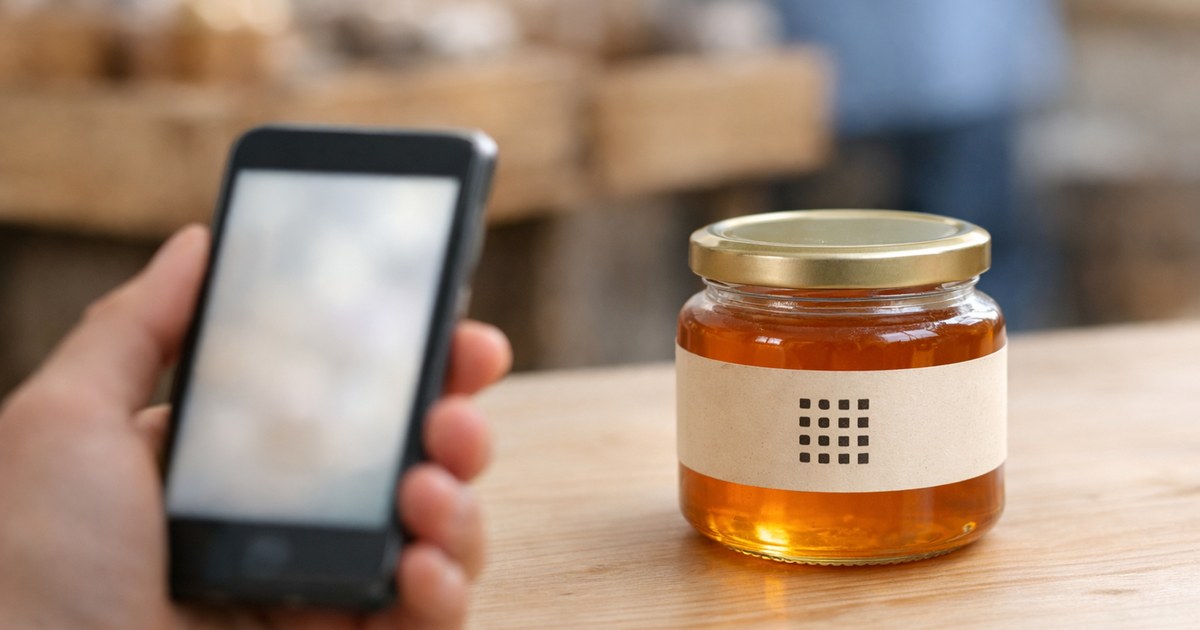
A beekeeper sticks on each jar a label with a small 2.2 cm QR code, surrounded by a white margin, under the sentence "Storage, use and harvest of this jar". Each variety has its own page: photo of the jar, how to store it, ideas for using it, a link to reorder. When he changes jar supplier, he updates the page without touching the labels already stuck on. When the "linden" variety is sold out, its page stays online and points to "acacia".
On a bloo.Cards card
As of 15 November 2026, the application code provides a "Product" card type and a "Products" module: a card can therefore serve as a page for a product, with its own shareable link. I have not tested these screens online for this article, and I do not describe the back-office menus here: check on your account what is available depending on your plan, and whether the card's QR code remains valid when you change its content.
Limits and common mistakes
- Linking to the home page instead of the product's page.
- Printing a static QR code and then changing the address: every printed copy leads to an empty page.
- Forgetting the white margin or placing the code on a busy background.
- Promising what the page does not deliver: "Scan for -20 %" with no offer online is a broken promise.
- Leaving legal information only behind the code. The mandatory information for your product (labelling, safety, allergens) depends on your sector and your country; check with the competent authority whether it can be provided online. Do not assume that it can.
In practice
One page per product, a stable address, a code of at least 2 cm with its white margin, a sentence saying why to scan, and a test on the real material. A bloo.Cards card can serve as the page, but the method holds with any tool.
References
- GS1 Canada, GS1 Digital Link : Connect your customers to the product information they want and need (fact sheet, publication date not indicated). https://gs1ca.org/documents/GS1-Canada-GS1-Digital-Link-Fact-Sheet-EN.pdf. Accessed on 15 November 2026.
- Deloitte MyQR, What is the minimum size of a QR Code? (provider help page, date not indicated). https://myqr.deloitte.com/help/en/article/what-is-the-minimum-size-of-a-qr-code. Accessed on 15 November 2026.
Related articles
 QR code & NFC
Dynamic QR code: the key to instant sharing
Discover how dynamic QR codes transform the sharing of digital business cards.2026-07-10 · 4 min read QR code & NFC
Your bloo.Cards QR code: generate and download
Every bloo.Cards card has its QR code, ready to print in PNG, JPG, PDF or SVG.2026-07-01 · 4 min read QR code & NFC